In a digital-first economy, creating an inclusive online experience is not just a matter of compliance; it’s a fundamental component of business growth, brand reputation, and market reach. For enterprises, SaaS companies, and financial institutions, failing to prioritize web accessibility means excluding a significant portion of the global population—over 1.3 billion people—and risking severe legal and financial penalties under regulations like the Americans with Disabilities Act (ADA) and the European Accessibility Act. Adhering to robust web accessibility best practices is now a core requirement for any organization serious about serving its entire potential audience. To understand the specific legal and technical landscape in the UK, for instance, a plain English guide to UK website accessibility requirements can be invaluable for ensuring compliance.
This guide provides actionable, expert-backed strategies that your development and product teams can implement immediately. We will explore how these practices not only mitigate legal risk but also enhance user experience for everyone, improve SEO performance, and drive tangible business results. At Group107, we integrate these principles into every digital solution, ensuring our clients build scalable, secure, and universally accessible platforms. This roundup covers the ten essential pillars that form the foundation of a truly accessible digital presence, from semantic HTML to automated testing and inclusive design principles. Let’s dive into the core practices that will future-proof your digital assets.
1. Use a Semantic HTML Structure
The most fundamental web accessibility best practice is using semantic HTML. This means using HTML elements according to their meaning, not just for their appearance. Elements like <header>, <nav>, <main>, <article>, and <footer> describe the purpose of the content they contain, creating a logical, predictable structure for web pages. This inherent meaning is crucial for assistive technologies, such as screen readers, which rely on this structure to interpret and navigate content for users with disabilities.
When a screen reader encounters a <nav> element, it announces “navigation,” allowing the user to either engage with it or skip directly to the <main> content. This is far more effective than a generic <div>, which provides no contextual information. For a SaaS application, this structure allows a user to bypass a complex navigation header and immediately access their dashboard, improving efficiency. To deepen your understanding, explore our insights on implementing semantic HTML for better accessibility.
Actionable Implementation Tips
To correctly implement semantic HTML, follow these critical guidelines:
- Use One
<h1>Per Page: The<h1>should represent the main title or purpose of the page. It’s the primary signpost for all users and a key factor for SEO. - Maintain Heading Hierarchy: Structure sub-sections with
<h2>through<h6>in logical order. Never skip heading levels (e.g., jumping from an<h2>to an<h4>), as this confuses the document outline for assistive technology users. - Define Landmark Regions: Always wrap your primary page content in a
<main>tag. Use<nav>for main navigation blocks,<header>for introductory content, and<footer>for site-wide information. This creates a clear roadmap for screen reader navigation. - Identify Independent Content: Use the
<article>element for self-contained content that could be distributed independently, such as a blog post, a financial report, or a product listing.
2. Provide Alternative Text for Images (Alt Text)
A cornerstone of web accessibility best practices is providing descriptive alternative text, or “alt text,” for all meaningful images. Alt text is a concise, written description of an image’s content and function embedded in the HTML. This text is crucial for users of screen readers, who rely on it to understand the visual information on a page. It also benefits all users by appearing in place of an image if it fails to load, ensuring no critical information is lost.
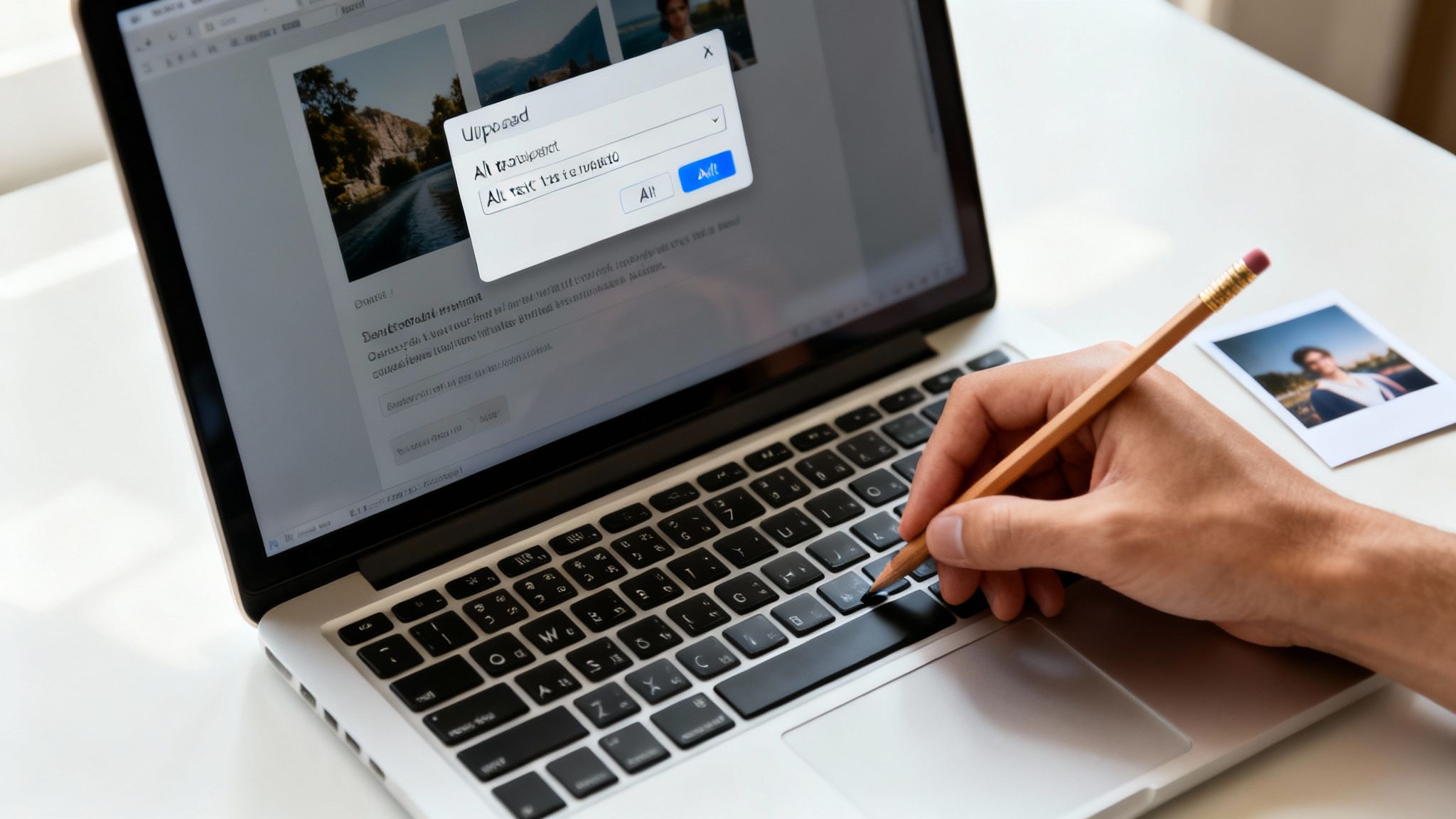
Effective alt text bridges the gap between visual content and non-visual access. For example, on an e-commerce site, the alt text for a product image should describe key visual features (“Women’s red running shoe with white sole”), directly impacting purchasing decisions. When implemented correctly, alt text ensures that the story or data conveyed by an image is accessible to your entire audience. Failing to provide it renders parts of your site incomprehensible to users with visual impairments. Explore our insights on how accessibility enhances the user experience for all.
Actionable Implementation Tips
To write effective and compliant alt text, follow these essential guidelines:
- Describe the Image’s Purpose: Convey the content and function of the image. For an image of a magnifying glass on a search button, the alt text should be “Search,” not “Magnifying glass.”
- Be Concise and Specific: Aim for under 125 characters, as many screen readers truncate longer descriptions. Describe what’s important in the image without excessive detail.
- Use an Empty Alt Attribute for Decorative Images: For images that are purely decorative and provide no informational value, use an empty alt attribute (
alt=""). This signals screen readers to skip the image, preventing unnecessary “noise” for the user. - Avoid Redundancy: Never start alt text with “Image of…” or “Picture of…” Assistive technologies already announce that it is an image. Go straight to the description.
3. Ensure Keyboard Navigation and Focus Management
Ensuring a website is fully operable with only a keyboard is a cornerstone of web accessibility best practices. Many users, including those with motor disabilities and power users, rely on keyboards or switch devices that emulate keyboard functionality. Effective keyboard navigation means every interactive element—from links and buttons to form fields and menus—is accessible and usable without a mouse.

When implemented correctly, a keyboard user can press the Tab key to move sequentially through all interactive elements. The currently selected element is highlighted with a visible “focus indicator,” showing the user exactly where they are. This is not just a compliance requirement; it’s a fundamental aspect of inclusive design. Enterprise platforms like Salesforce excel at this, providing comprehensive keyboard shortcuts and clear focus states that empower users to navigate complex interfaces with efficiency and ease.
Actionable Implementation Tips
To ensure your site is keyboard-accessible, focus on these critical implementation details:
- Preserve Visible Focus: Never remove the default focus outline (e.g.,
outline: none;) without providing a highly visible, custom alternative. Use CSS pseudo-classes like:focus-visibleto style focus indicators with strong color contrast. - Test Keyboard-Only Operation: Methodically navigate your entire site using only the keyboard. Use
Tabto move forward,Shift+Tabto move backward,Enterto activate links and buttons,Spacebarto toggle checkboxes, andEscapeto close modals or dismiss pop-ups. - Implement “Skip to Content” Links: For pages with persistent navigation headers, provide a “skip link” as the first focusable element. This allows keyboard users to bypass repetitive navigation blocks and jump directly to the
<main>content area, a critical feature for efficiency. - Manage Focus in Dynamic Components: When a modal, dialog, or menu opens, programmatically move focus to the first interactive element inside it. When it closes, return focus to the element that originally triggered it. This prevents the user’s focus from being lost on the page.
4. Maintain High Color Contrast and Visual Clarity
Visual design choices significantly impact usability, and a core principle of accessible design is maintaining sufficient color contrast. This practice ensures that text and other important visual elements are clearly distinguishable from their background, which is essential for users with low vision, color vision deficiencies, or even people viewing screens in bright sunlight. Following established contrast ratios creates a more readable and less strenuous experience for everyone.

This best practice is a measurable standard defined by the Web Content Accessibility Guidelines (WCAG). Google’s Material Design system, for example, has built-in guidance on accessible color palettes, helping designers create compliant and usable interfaces from the start. By prioritizing strong contrast, you ensure that key information is perceived correctly, forming a critical part of your web accessibility best practices. To learn more about integrating these standards, explore strategies for building an accessible digital foundation.
Actionable Implementation Tips
To ensure your visual design is accessible and compliant, implement the following tips:
- Meet WCAG Contrast Ratios: Aim for a contrast ratio of at least 4.5:1 for normal text and 3:1 for large text (18pt or 14pt bold). For graphical objects and UI components, the ratio is at least 3:1.
- Use Contrast Checking Tools: Regularly use tools like the WebAIM Contrast Checker or browser developer tools during the design and development phases to verify your color combinations meet the required standards.
- Don’t Rely on Color Alone: Never use color as the sole means of conveying information, such as an error state in a form or a selected item in a list. Supplement color with icons, text labels, or patterns.
- Test for Color Blindness: Use simulators or browser extensions to see how your design appears to users with different types of color vision deficiencies. This helps identify areas where information might be lost.
5. Build Accessible Forms with Clear Labels
Accessible forms are the lifeblood of interactive websites, enabling everything from e-commerce checkouts to financial service applications. Ensuring forms are accessible means everyone, including users with disabilities, can understand, navigate, and successfully submit information. This is achieved by creating a clear structure where every input field is explicitly associated with a visible, descriptive label. This programmatic link is vital for screen readers, which announce the label when a user focuses on an input, providing essential context.
Without proper labels, a form is incomprehensible to many users. A financial institution with an inaccessible loan application form is not only creating a frustrating user experience but is also losing potential customers and risking legal action. This practice is a cornerstone of web accessibility best practices, ensuring that crucial user interactions are a gateway, not a barrier.
Actionable Implementation Tips
To build truly accessible forms that serve all users, adhere to these guidelines:
- Use Explicit Labels: Always connect a
<label>to its form control using theforattribute, which should match theidof the input (e.g.,<label for="email">Email</label> <input type="email" id="email">). Avoid using placeholder text as a substitute for a label, as it disappears on input and is not reliably read by all assistive technologies. - Group Related Inputs: For related controls like radio buttons or checkboxes, group them within a
<fieldset>element and provide a clear group label using a<legend>tag. - Indicate Required Fields Clearly: Mark required fields visually with an asterisk (
*) and programmatically with thearia-required="true"attribute on the input element. - Provide Clear Error Messages: When validation fails, display a descriptive error message next to the relevant field. Use
aria-invalid="true"on the input to programmatically signal the error to assistive technologies and move focus to the first invalid field. - Describe Input Constraints: If an input has specific format requirements (e.g., MM/DD/YYYY), provide this information in the label or as nearby descriptive text.
6. Implement ARIA (Accessible Rich Internet Applications) Correctly
When native HTML cannot fully convey the purpose or state of a component, Accessible Rich Internet Applications (ARIA) attributes serve as a powerful enhancement. ARIA provides a way to add missing semantic information to elements, making custom widgets and dynamic content updates understandable to assistive technologies. It acts as a bridge, describing roles, states, and properties that aren’t available in standard HTML, which is essential for complex SaaS applications.
However, ARIA must be used with precision. Its primary rule is: “no ARIA is better than bad ARIA.” When misused, it can create more confusion and barriers than it solves. Frameworks like Material-UI and Bootstrap often provide accessible components with ARIA built-in, demonstrating how to handle complex interactions like modals and dynamic menus correctly. Properly implemented, ARIA ensures that all users can perceive and operate the advanced features of your site.
Actionable Implementation Tips
To effectively use ARIA as one of your web accessibility best practices without creating new problems, follow these key guidelines:
- Prioritize Native HTML: Always use a native semantic HTML element if one exists. For example, use a
<button>element instead of a<div>withrole="button". ARIA should only be used when native HTML is insufficient. - Use Roles for Custom Widgets: When building custom components that don’t have a direct HTML equivalent, like a tabbed interface or a slider, assign the appropriate ARIA
role(e.g.,role="tablist",role="tab",role="tabpanel"). - Communicate Dynamic Changes: Use
aria-liveregions to announce important dynamic updates to screen reader users, such as form validation errors, search results loading, or new chat messages. Set the politeness level (politeorassertive) based on the urgency of the message. - Manage State and Properties: Keep ARIA attributes synchronized with the component’s visual state. For example, if a collapsible section is expanded, its controlling button’s
aria-expandedattribute must be set totrue. - Provide Accessible Names: For controls like icon-only buttons, use
aria-labelto provide a clear, concise text alternative that describes its function (e.g.,aria-label="Close dialog").
7. Ensure Responsive Design and Mobile Accessibility
With mobile browsing now dominant, creating a responsive and mobile-accessible experience is a non-negotiable web accessibility best practice. This involves designing websites that adapt seamlessly to various screen sizes and orientations, ensuring that content is usable for everyone, including individuals with disabilities using mobile devices. A responsive design provides a consistent experience, preventing issues like horizontal scrolling or text that is too small to read.
When a site reflows its content correctly, it supports screen magnification and resizing features built into mobile operating systems, which are essential for users with low vision. Furthermore, a mobile-first approach often leads to cleaner, more focused interfaces that benefit all users, including those with cognitive disabilities. For an e-commerce platform, this means a user with a motor impairment can easily navigate and complete a purchase on a tablet, directly impacting revenue.
Actionable Implementation Tips
To ensure your responsive design is truly accessible on mobile devices, focus on these implementation details:
- Set the Viewport: Always include the viewport meta tag (
<meta name="viewport" content="width=device-width, initial-scale=1">) to ensure the page scales correctly on different devices and allows users to zoom. - Create Adequate Touch Targets: All interactive elements like buttons and links must have a minimum touch target size of 44×44 CSS pixels to be easily activated by users with motor impairments or those on bumpy transit.
- Use Relative Units: Design with relative units like
remandemfor font sizes andpercentagesfor layouts. This allows content to reflow and resize gracefully when users adjust text size or zoom up to 200%. - Test on Real Devices: Manual testing on actual iOS and Android devices is critical. Use mobile screen readers like VoiceOver (iOS) and TalkBack (Android) to identify navigation and usability issues specific to these platforms.
8. Maintain a Logical Heading and Content Structure
A clear and logical heading hierarchy is one of the most critical web accessibility best practices for creating navigable content. Just as visual users scan a page for headlines to understand its layout, screen reader users rely on heading levels (<h1> through <h6>) to grasp the page’s structure and jump directly to relevant sections. Proper heading structure creates a digital table of contents, allowing users to efficiently find information without having to listen to every word.
Well-structured content, like that seen on enterprise documentation portals or government websites, allows users to quickly understand the relationships between different pieces of information. A page that uses headings correctly provides a coherent, logical outline that benefits everyone, especially those using assistive technology. It transforms a wall of text into a well-organized document, making it fundamentally more usable and accessible.
Actionable Implementation Tips
To implement an effective and accessible heading structure, follow these guidelines:
- Outline with Headings First: Before writing content, plan your page’s structure using headings. This ensures a logical flow from the start.
- Use a Single
<h1>: Each page should have only one<h1>, which serves as the main title and clearly communicates the page’s purpose. - Maintain Hierarchy: Always nest headings in logical order. Never skip levels, such as going from an
<h2>directly to an<h4>. This creates a confusing and broken outline for assistive technology users. - Write Descriptive Headings: Ensure heading text accurately describes the content that follows. Vague headings like “More Information” are not helpful for users trying to scan the page.
- Separate Structure from Style: Use heading elements (
<h1>–<h6>) only for structural organization, not for visual styling. Use CSS to change the appearance of text if you need to make it larger or bolder without implying structural importance.
9. Ensure Video and Multimedia Accessibility
In our increasingly visual digital world, making video and multimedia content accessible is a critical component of web accessibility best practices. This practice ensures that information conveyed through audio and video is available to everyone, including users who are deaf, hard of hearing, blind, or have low vision. It involves providing alternatives like captions, transcripts, and audio descriptions to make content truly inclusive.
When a user who is deaf watches a video, synchronized captions allow them to follow the dialogue. Similarly, a user who is blind can comprehend crucial visual information through an audio description track. Leading platforms like Netflix and the BBC iPlayer exemplify this by offering high-quality captions and audio descriptions. For a deeper dive into the fundamental role of closed captions, explore a complete guide to closed captions and their accessibility meaning. Neglecting multimedia accessibility excludes a significant portion of your audience and fails to meet established WCAG standards.
Actionable Implementation Tips
To ensure your video and multimedia content is fully accessible, implement the following key strategies:
- Provide Accurate Captions: For all pre-recorded video, offer synchronized closed captions (CC). Auto-generated captions are a starting point but must be reviewed and edited for accuracy, punctuation, and speaker identification.
- Include Audio Descriptions: For videos where visual information is not conveyed through the main audio track, provide a separate audio track that describes key visual scenes, actions, and on-screen text.
- Offer Full Transcripts: Supply a text transcript of the entire multimedia presentation, including dialogue and descriptions of important sounds. This benefits users who are deaf-blind and also provides a text-only, searchable version of the content for all users.
- Use Accessible Media Players: Ensure your chosen media player supports closed captions, audio descriptions, and is fully operable with a keyboard. The native HTML5
<video>element with the<track>element is a robust, accessible foundation.
10. Test with Assistive Technologies and Real Users
While automated tools are excellent for catching initial accessibility issues, they cannot replicate the human experience. The most critical web accessibility best practice is testing your digital products with actual assistive technologies and, most importantly, with users who have disabilities. This approach moves beyond theoretical compliance to uncover real-world usability barriers that automated scans simply cannot detect.
Engaging directly with users who rely on screen readers, screen magnifiers, or voice recognition software provides invaluable feedback. Their lived experience reveals nuanced challenges in navigation, content comprehension, and interaction flows that developers and designers might overlook. This human-centered testing is an essential step for creating genuinely inclusive digital experiences that are not just compliant, but truly usable.
Actionable Implementation Tips
To effectively integrate assistive technology and user testing into your workflow, follow these guidelines:
- Test Early and Often: Integrate manual testing with assistive technologies into every stage of your development lifecycle, not just as a final check. Learning the basics of screen readers like NVDA, JAWS, or VoiceOver can empower your team to spot issues proactively.
- Recruit Users with Disabilities: Partner with accessibility consultancies or community groups to recruit and compensate users with diverse disabilities for testing sessions. Their insights are the most valuable data you can collect.
- Prioritize Keyboard-Only Navigation: Before any other test, navigate your entire site using only the keyboard. This simple check is a powerful indicator of baseline accessibility. Ensure all interactive elements are reachable and operable.
- Document and Act on Findings: Create a structured process for documenting usability issues found during testing. Translate these findings into actionable development tickets with clear priorities to ensure they are addressed. Learn more about creating inclusive PDFs directly from your CMS to prevent downstream issues.
10 Web Accessibility Best Practices: A Comparison
| Item | Implementation Complexity | Resource Requirements | Expected Outcomes | Ideal Use Cases | Key Advantages |
|---|---|---|---|---|---|
| Semantic HTML Structure | Low–Medium — requires understanding and possible refactor | Minimal–Moderate developer time | Improved screen reader comprehension, SEO, maintainability | New builds, content-heavy sites, refactors | Better assistive tech interpretation, SEO, predictable browser behavior |
| Alternative Text for Images (Alt Text) | Low — simple to add but requires writing skill | Minimal ongoing content effort; occasional specialist for complex images | Screen reader access to images, improved SEO, resilience when images fail | E‑commerce, media sites, social platforms | Enables non‑visual access, SEO benefit, usable on slow connections |
| Keyboard Navigation and Focus Management | Medium–High — careful focus and keyboard handling needed | Moderate dev and QA effort; CSS and ARIA for custom controls | Full keyboard operability, reduced keyboard traps, better motor‑accessibility | Web apps, modal/dialog heavy interfaces, productivity tools | Essential for motor‑impaired users; improves usability and speed |
| Color Contrast and Visual Design | Low–Medium — design tradeoffs required | Designer time and contrast testing tools | Improved readability, WCAG AA compliance, better legibility in varied lighting | Public content sites, apps with diverse users, branding with legibility needs | Readability for low vision/color‑blind users, stronger UX across contexts |
| Form Accessibility and Labels | Medium — needs correct markup and validation flow | Moderate dev/test effort; accessibility testing recommended | Clear form labeling, higher completion rates, screen reader clarity | Checkouts, registrations, government and financial forms | Better form success, clearer input targets, improved mobile usability |
| ARIA Implementation | High — complex and error‑prone if misused | Expert knowledge, extensive testing across assistive tech | Accessible custom widgets, dynamic content announcements | SPAs, custom components, retrofitting older code | Enables accessibility for non‑semantic/custom UI patterns |
| Responsive Design and Mobile Accessibility | Medium — responsive layouts and touch targets | Moderate dev/test across devices; performance optimization | Usable across devices, improved mobile accessibility and SEO | Mobile‑first sites, wide audience services, PWAs | Works on all devices, touch‑friendly UX, better discoverability |
| Headings and Content Structure | Low — authoring discipline more than heavy dev work | Minimal — content authoring and review | Faster navigation for screen readers, improved scannability and SEO | Articles, documentation, blogs, knowledge bases | Simple to implement with high accessibility impact |
| Video and Multimedia Accessibility | Medium–High — captions, transcripts, audio descriptions needed | Significant resources for captioning, transcription, QA | Access for deaf/blind users, legal compliance, better searchability | Streaming platforms, e‑learning, marketing/media sites | Enables access for deaf/blind users, improves engagement and compliance |
| Testing with Assistive Technologies and Users | Medium–High — procedural complexity and coordination | High — tools, trained testers, user recruitment | Real‑world issue detection, validated accessibility fixes | Major products, compliance audits, release QA processes | Catches issues automated tools miss; ensures solutions work for real users |
From Theory to Action: Embedding Accessibility in Your Workflow
Navigating web accessibility best practices is not a one-time project but a fundamental cultural and operational shift. True accessibility is achieved when it becomes an intrinsic part of your workflow—a practice often called “shifting left.” By integrating accessibility into the earliest stages of design, development, and content creation, you transform it from a compliance bottleneck into a catalyst for innovation and quality.
For product managers, this means incorporating accessibility user stories into the backlog. For designers, it means creating style guides with compliant color palettes from day one. For developers, it means writing clean, semantic code and leveraging automated checks within your CI/CD pipeline.
Your Actionable Roadmap
- Conduct a Baseline Audit: Start with a comprehensive accessibility audit of key user journeys. Combine automated tools like Axe or WAVE with manual testing using a keyboard and screen reader to uncover nuanced usability issues.
- Prioritize for Impact: Create a prioritized remediation plan. Focus first on high-impact, high-traffic areas like login forms, checkout processes, and core application features. Address critical blockers that prevent users from completing essential tasks.
- Invest in Team-Wide Training: Accessibility is a shared responsibility. Equip your designers, developers, QA engineers, and content creators with the role-specific knowledge and tools they need to apply these practices immediately.
- Integrate and Automate: Embed accessibility testing directly into your DevOps pipeline. Automated checks can catch a significant percentage of common violations before they ever reach production, saving immense time and resources on rework.
“Sustainable accessibility isn’t about perfection on day one; it’s about persistent progress every day. By integrating these web accessibility best practices into your core operations, you build a resilient, compliant, and profoundly more effective digital product.”
Ultimately, embracing these web accessibility best practices delivers powerful business outcomes. It mitigates legal risk, expands your market reach to include millions of users with disabilities, and enhances your brand’s reputation. More importantly, it improves the user experience for everyone, creating cleaner code, more logical navigation, and clearer interfaces that benefit all users, regardless of ability. This is how you build products that don’t just function but truly connect.
Ready to move from theory to implementation and ensure your digital platforms are compliant, usable, and inclusive? Group107 provides end-to-end accessibility services, from expert WCAG audits and remediation to embedding dedicated, accessibility-focused engineers into your team. Contact us today to build a digital future that works for everyone.